
Native Applications
Native applications are software installed directly on the system, offering better performance and lower resource usage compared to containerized deployment.
Application List
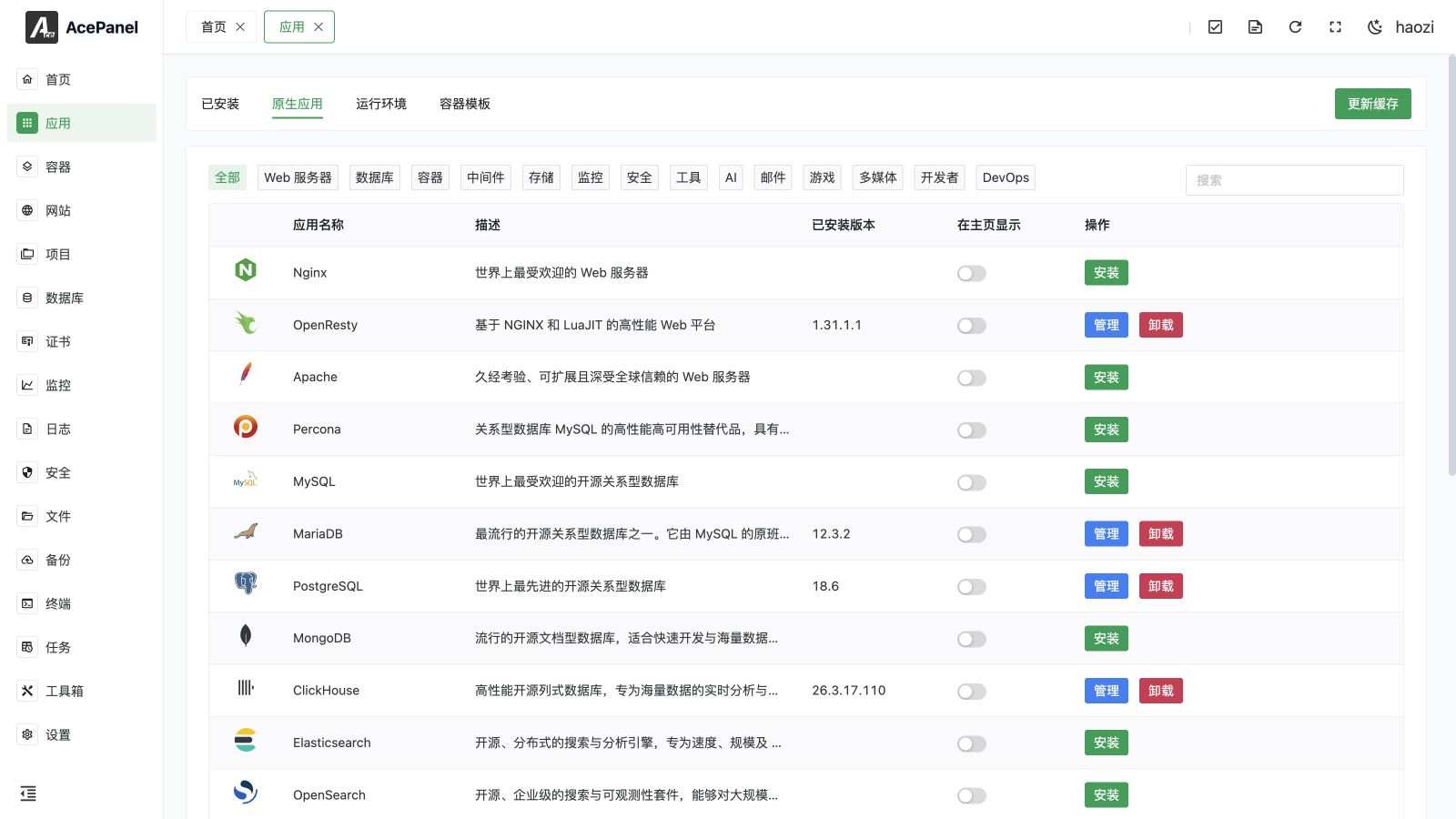
Go to the Apps page and switch to the Native App tab to view the native application list. You can filter different types of applications through the category tags at the top, or use the search box on the right to search by name or description.
The list displays the following information:
- App Name: Software name
- Description: Brief description of the software
- Installed Version: Currently installed version number (empty if not installed)
- Show in Home: Whether to display in the Quick Apps area on the panel homepage
- Actions: Install, update, manage, or uninstall
Install Application
Click the Install button on the right side of the application, and an installation dialog will pop up:
Select Channel
Some applications provide multiple version channels. Click the dropdown to select the desired version series:
Select Version
After selecting a channel, the system will automatically fill in the latest version number for that channel:
If the selected channel provides release notes, a Release Log section will appear below the version field, showing the changelog for that channel. The version field itself is read-only and always reflects the latest available version of the chosen channel.
Some applications also provide Pre-execution Script and Custom Compile Parameters fields. The pre-execution script runs before the installer and is intended for repository, dependency, or environment preparation. Custom compile parameters are passed to applications that support source-build customization.
Review both fields before submitting: they execute with installation privileges and a mistake can change the system outside the application directory. Leave them empty for a normal installation.
Click Install to submit the background task and follow its log under Tasks > Panel Tasks.
Manage Application
Installed applications will display a Manage button. Click to enter the application management page.
Running Status
The management page first displays the application's running status:
The following operations are provided:
- Start: Start a stopped service
- Stop: Stop a running service
- Restart: Restart the service (will interrupt connections)
- Reload: Reload configuration (without interrupting connections, recommended; only available for applications that support it)
The Autostart switch in the top-right corner controls whether the service starts automatically on system boot.
Modify Configuration
Click the Modify Configuration tab to directly edit the application's configuration file:
Note
Please ensure you understand the meaning of each parameter before modifying configuration files. Incorrect configuration may prevent the service from starting.
View Logs
Click the Run Log or Error Log tab to view application logs, which is helpful for troubleshooting.
Update Application
When a new version is available, an Update button appears next to the application in the list. Clicking it shows a confirmation dialog with the target version number. Note that updating may reset related configurations to their default state. After confirming, the update runs in the background and its progress can be tracked on the Tasks page.
Uninstall Application
Click the Uninstall button to uninstall the application. A confirmation dialog with a 5-second countdown will appear. Before uninstalling, please ensure:
- No websites or projects depend on this application
- Important configuration files and data have been backed up
Warning
Uninstalling database applications (such as MySQL, PostgreSQL) will delete all database data. Please make sure to backup in advance!
Warning
Uninstalling a web server application (such as Nginx/OpenResty) will reset the configuration of all websites. The confirmation dialog will display a dedicated warning for this case. The same reset also applies when reinstalling or switching to a different web server.
Homepage Shortcut
After enabling the Show in Home switch, the application will appear in the Quick Apps area on the panel homepage for quick access to the management page.