
Project
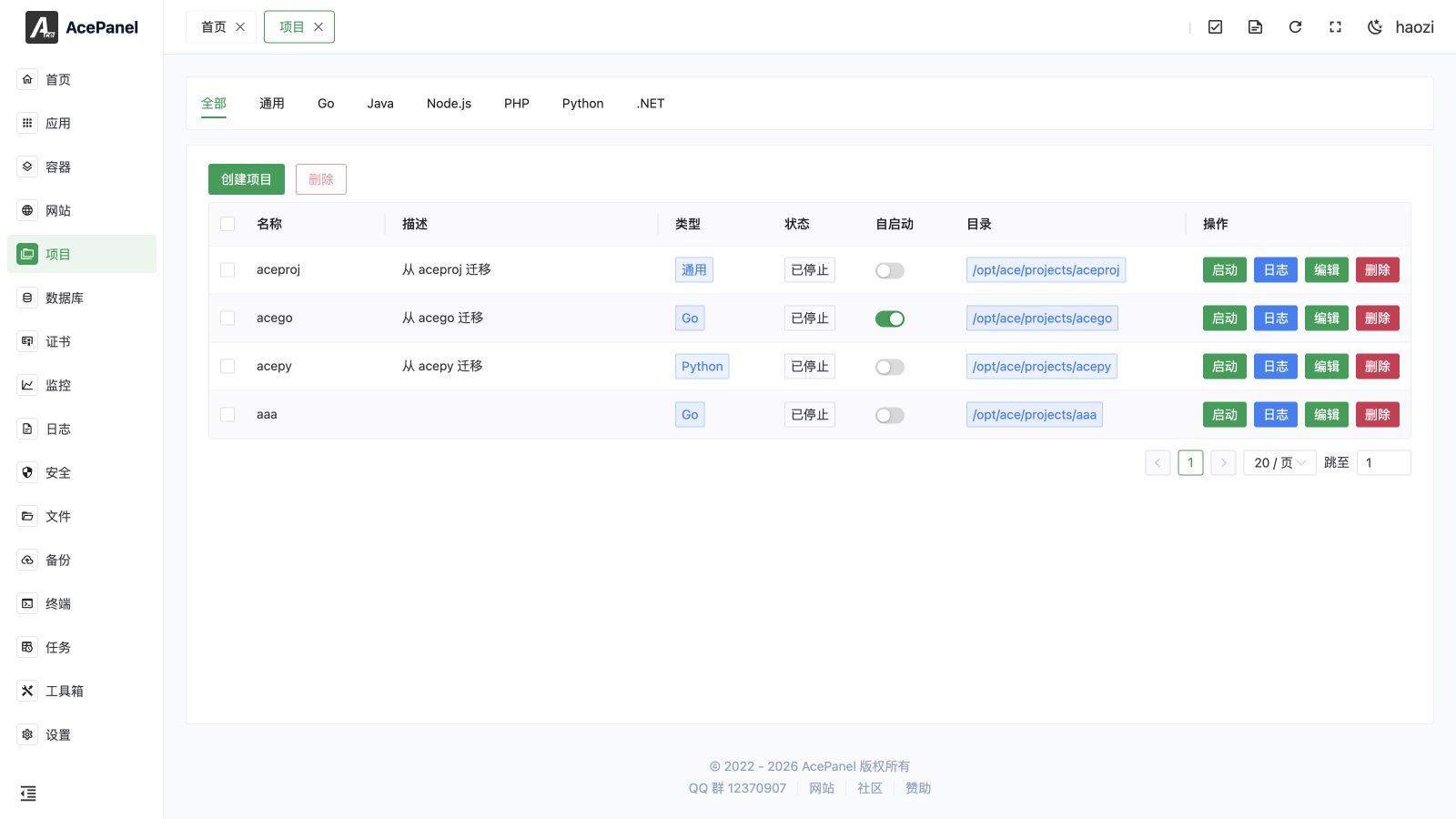
The project module is used to manage backend applications, supporting multiple languages including Go, Java, Node.js, PHP, Python, .NET, etc. Projects run as system services, supporting automatic restart, auto-start on boot, and other features.
Project Types
| Type | Description | Use Cases |
|---|---|---|
| Go | Go language projects | Gin, Echo, Fiber frameworks |
| Java | Java projects | Spring Boot, Tomcat, etc. |
| Node.js | Node.js projects | Express, Koa, NestJS, etc. |
| PHP | PHP projects | Laravel Octane, Swoole, etc. |
| Python | Python projects | Django, Flask, FastAPI, etc. |
| .NET | .NET projects | ASP.NET Core, Blazor, gRPC |
| General | Other types of projects | Any executable program |
Project vs Website
| Feature | Project | Website |
|---|---|---|
| Run Mode | Independent process | Depends on Web server |
| Process Management | Auto restart, auto-start on boot | Managed by Web server |
| Use Cases | Backend services, APIs | Traditional Web applications |
| External Access | Requires reverse proxy | Direct access |
Create Project
- Go to the Project page
- Click Create Project
Configuration Items
- Project Name: Project identifier, used as service name (letters, numbers, underscores, and hyphens only)
- Project Directory: Directory where project files are located. If left empty, defaults to the configured project path joined with the project name (e.g.
/opt/ace/projects/<project name>) - Run User: System user to run the project, default www (you may also choose
root/nobody, or type a custom user) - Start Command: Command to start the project
- Reverse Proxy: Whether to automatically create a reverse proxy website
Type-specific Helper Fields
When you open the create dialog from a language-specific tab (Go, Java, Node.js, PHP, Python, or .NET), additional helper fields appear to assist you in composing the Start Command:
- Version selection: Pick an installed runtime version for the chosen language. Only versions actually installed under Apps > Runtime Environment are listed.
- Framework: Select a framework preset. Choosing a preset (anything other than Custom) auto-fills the Start Command in the form
<runtime><version> <preset command>(for examplepython3.12 -m flask run --host=0.0.0.0). The generated command remains fully editable. - Go Run Mode (Go only): Choose between Source Code and Binary.
- Source Code: Select a Go Version and an Entry File (e.g.
main.go,cmd/server/main.go); the start command becomesgo<version> run <entry file>. - Binary: The start command points to the compiled binary at
<project directory>/main.
- Source Code: Select a Go Version and an Entry File (e.g.
These helper fields only influence the generated Start Command; the panel ultimately stores the command itself, so you can always override it manually.
Reverse Proxy Options
When Reverse Proxy is enabled, two extra inputs appear:
- Domain: One or more domains for the reverse proxy website (at least one is required).
- Project Port: The local port your application listens on. The created website listens on port
80and proxies tohttp://127.0.0.1:<project port>.
The reverse proxy website is created first; if it fails, the project is not created.
Project Management
The project list displays the following information:
- Name: Project name
- Description: Project description
- Type: Project type (Go/Java/Node.js, etc.)
- Status: Service state — one of Running (active), Stopped (inactive), Failed (failed), or Inactive (default/unknown)
- Auto Start: Whether to auto-start on boot (toggled directly from the list)
- Directory: Project directory
- Actions: Start, stop, restart, logs, etc.
Project Operations
- Start: Start the project
- Stop: Stop the project
- Restart: Restart the project (only shown when running)
- Reload: Reload the project without a full restart (only shown when running)
- Logs: View project runtime logs
- Edit: Modify project configuration
- Delete: Delete the project (requires a 5-second confirmation countdown)
- Bulk Delete: Select multiple projects with the row checkboxes, then use the Delete button above the list to remove them at once (also requires a 5-second confirmation countdown)
Edit Project
Click the Edit button in the project list to modify project configuration. The edit dialog contains multiple tabs:
Basic Settings
Configure basic project information:
- Project Name: Project identifier, used as service name
- Description: Project description information
- Project Directory: Directory where project files are located
- Working Directory: Working directory when the program runs, defaults to project directory
- Run User: System user to run the project
Run Settings
Configure project runtime parameters:
- Start Command: Command to start the project
- Pre-start Command: Command to run before starting (optional)
- Post-start Command: Command to run after starting (optional)
- Stop Command: Custom stop command (optional)
- Reload Command: Custom reload command (optional)
- Restart Policy: No restart, always restart, restart on failure, on abnormal, on abort, or on success
- Restart Interval: Wait time between restarts
- Max Restart Count: Maximum number of consecutive restarts
- Start Timeout: Timeout for waiting for service to start
- Stop Timeout: Timeout for waiting for service to stop
- Standard Output: How to handle standard output
- Standard Error: How to handle standard error
- Environment Variables: Set environment variables for project runtime
Dependencies
Configure service dependencies to control startup order:
- Requires: Strong dependencies, if these services are unavailable, the project will fail
- Wants: Weak dependencies, if these services fail, the project will still start
- After: Start this project after the specified services
- Before: Start this project before the specified services
Common services: network.target, mysqld.service, postgresql.service, redis.service
Resource Limits
Set resource limits to prevent services from consuming too many system resources:
- Memory Limit: Limit the maximum memory used by the project, 0 means unlimited
- CPU Quota: Limit CPU usage, 100% = 1 CPU core
Security Settings
Security options to enhance service isolation:
- No New Privileges: Prevent the process from gaining new privileges
- Protect /tmp: Create a private /tmp directory for the service
- Protect /home: Restrict access to the /home directory
- Protect System: Set read-only protection level for system directories
true: /usr, /boot are read-onlyfull: + /etc is read-onlystrict: Entire filesystem is read-only
- Read-Write Paths: Paths the service can read and write
- Read-Only Paths: Paths the service can only read
Note
Security settings may affect certain features. Please test thoroughly before enabling.
Process Management
Projects use systemd for process management, with the following features:
- Auto Restart: Automatically restart after abnormal process exit
- Auto Start on Boot: Automatically start the project when the system boots
- Log Management: Automatically record standard output and error output
Next Steps
- Go Project - Deploy Go applications
- Java Project - Deploy Java applications
- Node.js Project - Deploy Node.js applications
- PHP Project - Deploy PHP applications
- Python Project - Deploy Python applications
- .NET Project - Deploy .NET applications
- General Project - Deploy other types of applications