
Security Settings
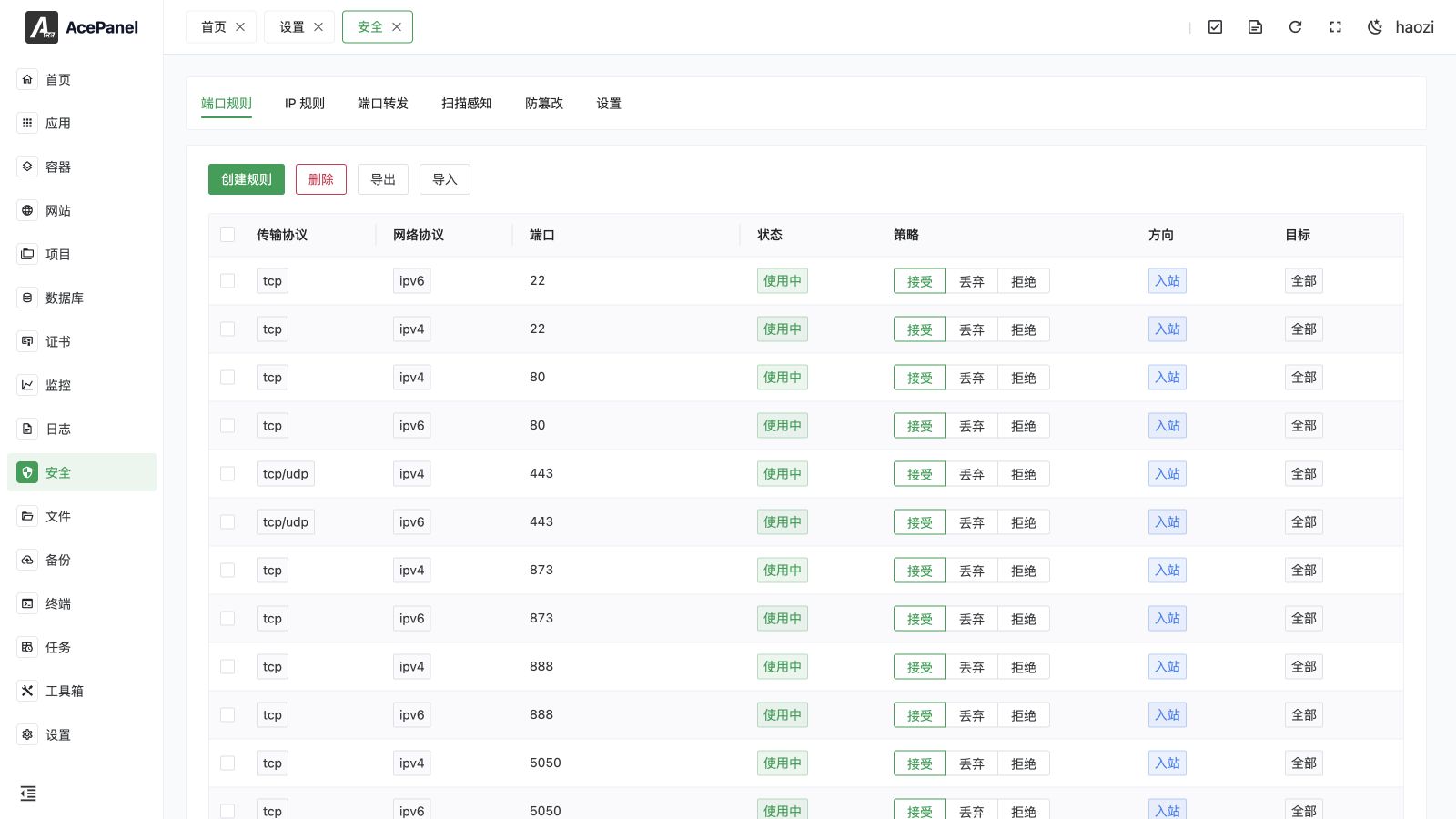
The security settings page is used to configure panel security-related options to protect the panel from unauthorized access.
Login Timeout
Set the validity period of login sessions in minutes. If there is no activity beyond this time, you will be automatically logged out and need to re-authenticate.
The value must be between 10 and 43200 minutes. The recommended value is 120 minutes.
Access Entry
Set the access path for the panel. After setting the access entry, you need to access via https://IP:port/entry-path.
For example, if set to /admin, the access address becomes https://IP:port/admin.
This is a simple but effective security measure that can prevent the panel from being discovered by scanners.
If you leave this field blank and save, it is automatically reset to /, which disables the custom entry (not recommended).
Entry Error Page
The HTTP status code returned when accessing an incorrect entry path:
- 418 I'm a teapot: Returns an interesting error code and error page
- Nginx 404: Returns the same 404 page as Nginx
- Close Connection: Closes the connection directly without returning any content
Login Captcha
When enabled, a captcha will be required after 3 failed login attempts to prevent brute force attacks.
Request IP Header
When the panel is deployed behind a reverse proxy (such as Nginx, CDN), you need to set the correct IP header to obtain the real client IP.
Common values:
X-Real-IP: Default used by NginxX-Forwarded-For: Standard proxy headerCF-Connecting-IP: Used by Cloudflare
Bind Domain
Restrict panel access to specified domains only. After adding a domain, access via IP or other domains will be blocked.
Suitable for:
- Improving security
- Using with SSL certificates
Bind IP
Restrict panel access to specified IP addresses only. Multiple IP addresses can be added.
Suitable for:
- Fixed office networks
- Jump server access
Note
Before binding IP, please ensure your IP address is static, otherwise you may be unable to access the panel.
Bind UA
Restrict panel access to browsers with specified User-Agent only.
This is an advanced security option that can be used with custom browser plugins.
Offline Mode
When enabled, the panel will not connect to external networks, including:
- Checking for updates
- Downloading applications
- Syncing cache data
Suitable for intranet environments or scenarios with strict network restrictions.
Auto Update
When enabled, the panel will automatically check and install updates daily. It is recommended to keep this enabled to receive the latest security fixes.
Panel HTTPS
Enable HTTPS encrypted access for the panel:
- Disabled: Access via HTTP
- ACME (Auto): Automatically apply for and renew Let's Encrypt certificates daily, requires the panel to be accessible via a public IP
- Self-Signed: Automatically generate a self-signed certificate (browsers will show a warning), renewed automatically before expiry
- Custom Certificate: Use your own SSL certificate
When Custom Certificate is selected, two additional text fields appear:
- Certificate: Paste the full certificate chain (PEM format)
- Private Key: Paste the matching private key (PEM format)
Both fields are validated when you save; an invalid certificate or private key is rejected and the settings are not applied.
When ACME (Auto) or Self-Signed is selected, a Refresh Certificate / Regenerate Certificate button appears next to the Save button, allowing you to manually re-issue the certificate. After re-issuing, the page reloads automatically after a few seconds.
When the panel is bound to a domain, that domain can be used for ACME issuance. Confirm that DNS and the required validation path reach this server before requesting the certificate.
Note
The Refresh Certificate / Regenerate Certificate button stays disabled while there are unsaved changes to the HTTPS mode or Panel Public IP. Save your changes first, then click the button to re-issue the certificate.
Recommended
It is recommended to enable HTTPS in production environments to protect the transmission security of login credentials and sensitive data.
Panel Public IP
Configure the public IP address of the panel, currently mainly used for applying IP certificates from Let's Encrypt.
Supports both IPv4 and IPv6 addresses.
This field is only shown when Panel HTTPS is set to ACME (Auto). Multiple addresses can be added.
Saving Changes
Click Save to apply the security settings.
Changing options that affect how the panel is served, such as the access entry, entry error page, login captcha, request IP header, bind domain / IP / UA, login timeout, or the HTTPS configuration, requires a panel restart. When a restart is needed, the panel restarts automatically and the page reloads after about 5 seconds at the new address.
Note
Security settings cannot be saved while a background task is running. If a task is in progress, wait for it to finish and try again.