
File
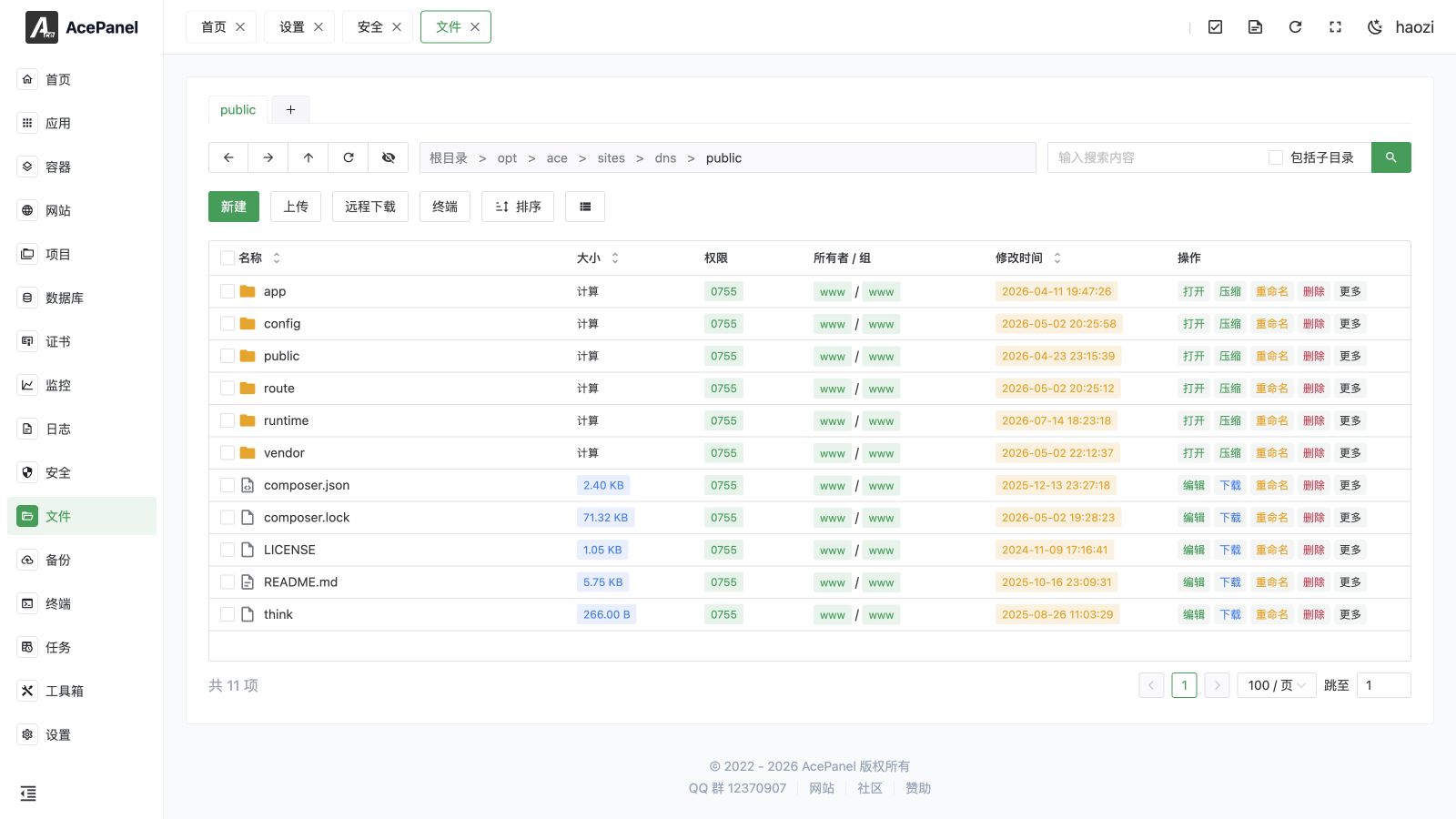
The file module provides a powerful graphical file manager. The design philosophy is to restore the Windows Explorer operation experience as much as possible, supporting right-click menus, drag-and-drop upload, keyboard shortcuts, and other features.
File Manager
Core Features
Windows-like Operation Experience
- Right-click Menu: Right-click on files or directories to pop up an action menu
- Drag-and-drop Upload: Directly drag local files to the browser window to upload
- Multi-select Operations: Support Ctrl+click for multi-select, Shift+click for range selection
- Keyboard Shortcuts: Common operations have corresponding keyboard shortcuts
Keyboard Shortcuts
| Shortcut | Function |
|---|---|
Ctrl+C | Copy |
Ctrl+X | Cut |
Ctrl+V | Paste |
Delete | Delete selected |
F2 | Rename selected (single selection) |
Ctrl+A | Select All |
Ctrl+T | Open a new tab |
Ctrl+W | Close the current tab |
Enter | Open the selected entry (single selection) |
Backspace | Go to the parent directory |
Escape | Clear the current selection |
↑ ↓ | Move the selection between entries |
← → | Move the selection (grid view only) |
Home / End | Jump to the first / last entry |
Shift + arrow / Home / End | Extend the selection while moving |
On macOS, use
Cmdin place ofCtrl. Keyboard shortcuts are ignored while focus is inside an input box or while the file editor window is open.
Navigation
Path Navigation
The top displays breadcrumb navigation of the current path. Click to quickly jump to any parent directory.
Quick Buttons
- Back: Return to the previous visited directory
- Forward: Go to the next directory
- Up: Return to parent directory
- Refresh: Refresh current directory
- Show/Hide Hidden Files: Toggle whether dotfiles (e.g.
.bashrc) are displayed
Tabs
The file manager supports multiple tabs, so you can browse several directories at once:
- Click the + button on the tab bar (or press
Ctrl+T) to open a new tab - Click the × on a tab (or press
Ctrl+W) to close it; you can also close a tab with a middle-click - Each tab keeps its own path and browsing history
File List
The file list displays the following information:
| Column | Description |
|---|---|
| Name | File or directory name |
| Size | File size, directories show "Calculate" which can be clicked to calculate |
| Permissions | File permissions (e.g., 0755) |
| Owner/Group | File owner and group |
| Modified Time | Last modified time |
| Actions | Open, compress, rename, delete, more |
Select Files
After selecting files, batch operation buttons appear at the top:
- Copy: Copy selected files
- Move: Move selected files
- Compress: Compress selected files
- Permissions: Modify permissions
- Delete: Delete selected files
More Actions
Click the More button on the file row to display more action options:
- Copy: Copy file to another directory
- Move: Move file to another directory
- Permissions: Modify file permissions and owner
- Compress: Compress file
- Uncompress: Extract the archive (only shown for compressed files)
- Copy Path: Copy the full path of the file
- Terminal: Open a terminal in the directory (only shown for directories)
- Properties: View detailed file properties
Compress
When you compress one or more entries, the dialog lets you edit the target archive name and pick an archive Format. The file extension is updated automatically to match the selected format. Supported formats:
| Format | Description |
|---|---|
.zip | ZIP archive |
.gz | Gzip |
.tar | Uncompressed tar archive |
.tar.gz | Gzip-compressed tar |
.tgz | Gzip-compressed tar (alias) |
.tar.bz2 | Bzip2-compressed tar |
.tar.xz | XZ-compressed tar |
.tar.zst | Zstandard-compressed tar |
.7z | 7-Zip archive |
.gz, .xz, .bz2, and .zst are also supported as single-file compression formats. They compress one file rather than creating a multi-file archive; use a tar.*, ZIP, or 7-Zip format when the selection contains several entries or a directory.
Compression and extraction are submitted as background tasks. You can leave the Files page and follow progress and failures under Tasks > Panel Tasks. Refresh the directory after the task completes.
Toolbar
New
Click the New button to:
- Create new file
- Create new directory
Upload
Click the Upload button to upload local files to the server.
Supported upload methods:
- Click to select files for upload
- Drag-and-drop Upload: Directly drag files to the page to upload
Before transferring data, AcePanel checks the destination for name conflicts. For each conflicting item—or for all remaining conflicts at once—choose Skip, Rename, or Overwrite. Review directory conflicts carefully: overwrite can replace existing content, while rename keeps both entries under different names.
Share
Use Share on a file to create a public download link. Choose an expiry of 1 hour, 1 day, 7 days, or 30 days and optionally limit the number of downloads. Copy the URL from the active share or cancel it when it is no longer needed.
Anyone with the URL can download the file until it expires, reaches its limit, or is cancelled. Do not share backups, private keys, database dumps, configuration files, or logs containing credentials. Cancelling a share prevents future downloads but cannot recall existing copies.
Remote Download
Click the Remote Download button, enter a URL address to download remote files to the current directory.
Use cases:
- Download software installation packages
- Download remote backup files
- Get files from other servers
Search
Enter keywords in the search box to search for files:
- Default searches current directory
- Check Include Subdirectories to search recursively
Terminal
Click the Terminal button to open a terminal in the current directory for convenient command line operations.
Sort
Click the Sort button to sort the file list by different fields.
File Editor
AcePanel has a built-in powerful code editor based on Monaco Editor (the same editor core as VS Code).
Editor Features
- Syntax Highlighting: Supports syntax highlighting for various programming languages
- Code Folding: Supports code block folding
- Line Numbers: Displays line numbers for easy positioning
- Minimap: Displays code thumbnail on the right side
- Word Wrap: Can toggle word wrap mode
- Multi-file Editing: Supports opening multiple files simultaneously with tab switching
Editor Shortcuts
| Shortcut | Function |
|---|---|
Ctrl+S | Save current file |
Ctrl+Shift+S | Save all files |
Ctrl+F | Search |
Ctrl+H | Replace |
Ctrl+G | Go to line |
Ctrl+/ | Toggle a comment in supported configuration files |
Editor Toolbar
- Save: Save current file
- Save All: Save all modified files
- Refresh: Reload file content
- Search: Open search panel
- Replace: Open replace panel
- Go to: Jump to specified line
- Font Size: Adjust editor font size
- Toggle Word Wrap: Enable/disable word wrap
- Toggle Minimap: Show/hide right-side minimap
- Settings: Open the editor settings dialog
Editor Settings
Clicking Settings opens a dialog where the editor behavior can be fine-tuned. Settings take effect immediately and are grouped as follows.
Basic
| Setting | Description |
|---|---|
| Tab Size | Width of a tab, from 1 to 8 |
| Use Spaces | Insert spaces instead of tab characters when pressing Tab |
| Font Size | Editor font size, from 10 to 24 |
| Word Wrap | Off, On, Word Wrap Column, or Bounded |
| Show Minimap | Show or hide the code minimap on the right side |
Display
| Setting | Description |
|---|---|
| Line Numbers | On, Off, Relative, or Interval |
| Render Whitespace | None, Boundary, Selection, Trailing, or All |
| Bracket Colorization | Colorize matching bracket pairs |
| Indent Guides | Show indentation guide lines |
| Code Folding | Enable or disable code block folding |
Cursor
| Setting | Description |
|---|---|
| Cursor Style | Line, Block, Underline, Line Thin, Block Outline, or Underline Thin |
| Cursor Blinking | Blink, Smooth, Phase, Expand, or Solid |
| Smooth Scrolling | Enable smooth scrolling animation |
Behavior
| Setting | Description |
|---|---|
| Mouse Wheel Zoom | Zoom the editor by holding Ctrl and scrolling the mouse wheel |
| Format On Paste | Automatically format pasted content |
| Format On Type | Automatically format code as you type |
Fullscreen Mode
Click the Maximize button for fullscreen editing to get more editing space:
Sidebar File Tree
The left side of the editor displays the file tree of the current directory, allowing you to:
- Quickly switch to edit other files
- Create new files and directories
- Search files
- Rename or delete entries via the right-click menu
Status Bar
The editor bottom status bar displays:
- Full file path
- Line ending type (LF/CRLF)
- Cursor position (line, column)
- Indentation settings (spaces/Tab)
- File language type
Tamper Protection
When Tamper Protection covers a file or directory, Files shows a lock and its protected or immutable state. Use the inline or context-menu action to add or remove protection.
For a supported single-item operation, AcePanel can temporarily remove the immutable attribute, perform the operation, and restore protection. Batch deletion does not silently unlock protected files and warns that immutable entries cannot be deleted. Review the interception log when an edit, upload, rename, extraction, or deployment is denied.
Permission Explanation
Linux file permissions are represented by three groups of numbers:
| Permission | Number | Description |
|---|---|---|
| r | 4 | Read |
| w | 2 | Write |
| x | 1 | Execute |
For example 0755:
- Owner: 7 (4+2+1) = read+write+execute
- Group: 5 (4+1) = read+execute
- Others: 5 (4+1) = read+execute
Common permissions:
0644: Regular files0755: Executable files and directories0600: Private files (such as keys)