
Backup
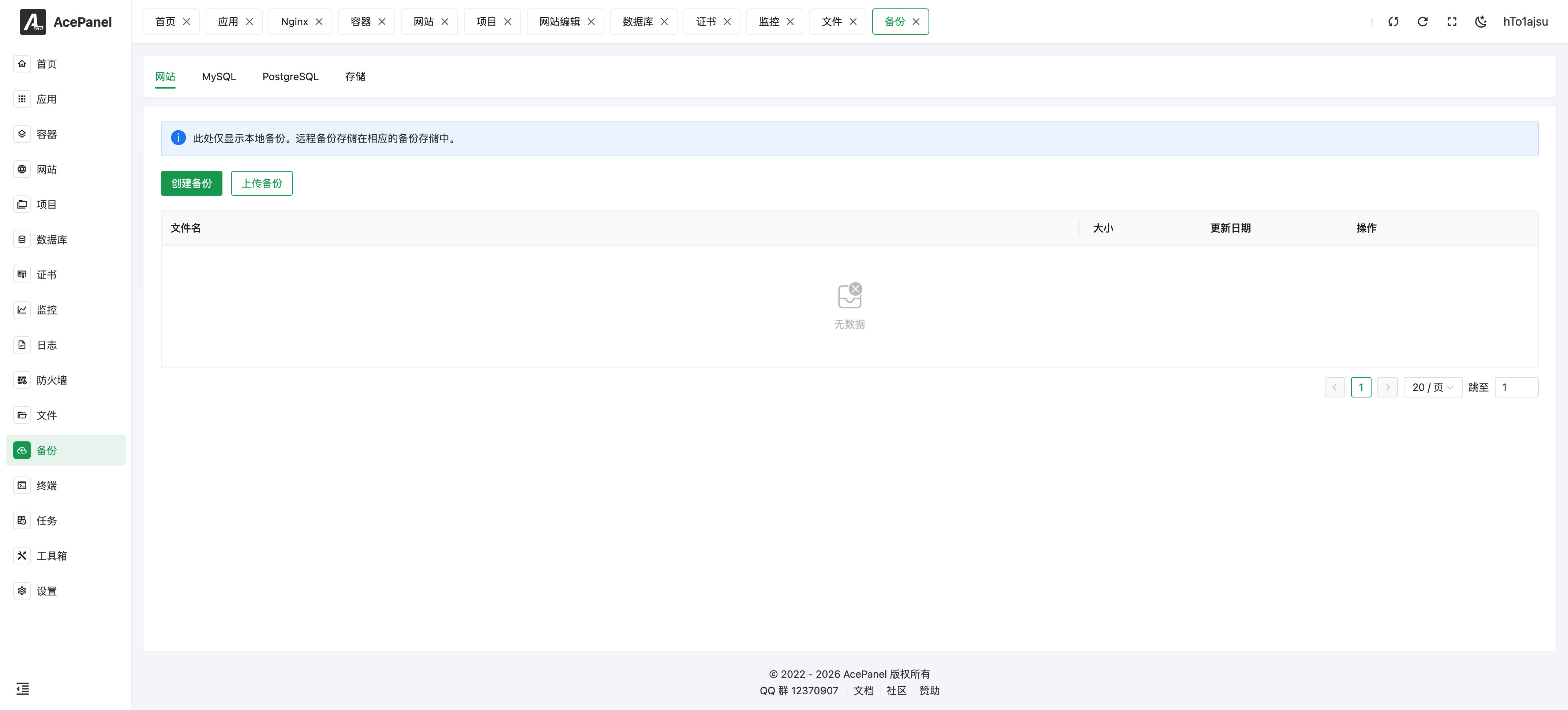
The backup module is used to backup and restore website files and databases, supporting local backup and remote storage.
Backup Page
Backup Types
The backup module supports the following types of backups:
| Type | Description |
|---|---|
| Website | Backup website files |
| MySQL | Backup Percona/MySQL/MariaDB databases |
| PostgreSQL | Backup PostgreSQL databases |
| ClickHouse | Backup ClickHouse databases |
| Redis | Backup Redis data |
| Valkey | Backup Valkey data |
Database tabs are shown when a corresponding server is available.
Create Backup
- Select the backup type tab (Website/MySQL/PostgreSQL/ClickHouse/Redis/Valkey)
- Click Create Backup
- Select the website (for the Website type) or enter the database name (for database types) to back up
- Select the backup storage
- Click Submit
The compression format of backup archives is controlled by Settings > Basic > Backup Compression Format, which supports tar.xz (default), tar.gz, tar.zst, zip and 7z.
Backup file formats (<format> is the configured compression format):
- Website:
<name>.<format>archive of the website directory - Database:
<name>.sql.<format>compressed SQL dump
Backup List
The backup list displays the following information:
- Filename: Backup file name
- Size: Backup file size
- Update Date: Backup time
- Actions: Download, restore, delete
Restore Backup
- Find the backup to restore in the backup list
- Click Restore
- Select the target website or database and submit the task
- Follow the restore under Tasks > Panel Tasks and review its log before using the restored resource
Website restore recognizes compatible archive layouts created by other server panels. Always review the destination path and site content after importing an external archive.
Warning
Restore runs in the background and can overwrite existing data. Back up the current target first. Closing the dialog does not stop the task.
Upload Backup
Click the Upload Backup button to upload local backup files for data restoration. Supported file types are .sql, .zip, .tar, .gz, .tgz, .bz2, .xz, .zst and .7z.
Storage Management
Switch to the Storage tab to manage backup storage locations.
Local Storage
The default storage location, backup files are saved locally on the server.
Remote Storage
Click Add Storage to add remote storage, supporting:
- S3 Compatible Storage: AWS S3, Alibaba Cloud OSS, Tencent Cloud COS, etc.
- SFTP: SFTP servers (authenticate with either a password or a private key)
- WebDAV: WebDAV servers
Advantages of remote storage:
- Off-site backup to prevent data loss
- Does not occupy server disk space
- Convenient for sharing backups across multiple servers
S3 Compatible Storage Configuration
S3 compatible storage is the most commonly used remote storage method. Most cloud storage providers offer S3 compatible interfaces.
Configuration Parameters
| Parameter | Description |
|---|---|
| Name | Name of the storage configuration for identification |
| Type | Select S3 |
| Access Key | Access Key ID |
| Secret Key | Access Key Secret |
| Style | Virtual Hosted or Path Style |
| Region | Region code, e.g., us-east-1, cn-hangzhou |
| Endpoint | S3 service endpoint URL |
| Scheme | HTTPS (recommended) or HTTP |
| Bucket | Bucket name |
| Path | Sub-path for backup file storage (optional) |
Access Style Explanation
S3 has two URL access styles:
Virtual Hosted Style:
https://bucket.endpoint/key- Bucket name as subdomain
- AWS S3 uses this style by default
Path Style:
https://endpoint/bucket/key- Bucket name as part of the path
- Self-hosted MinIO typically uses this style
Compatibility List
| Provider | Documentation | Compatible Access Style | Compatibility |
|---|---|---|---|
| Alibaba Cloud OSS | Docs | Virtual Hosted Style | ✅ |
| Tencent Cloud COS | Docs | Virtual Hosted Style / Path Style | ✅ |
| Qiniu Cloud | Docs | Virtual Hosted Style / Path Style | ✅ |
| Baidu Cloud BOS | Docs | Virtual Hosted Style / Path Style | ✅ |
| JD Cloud | Docs | Virtual Hosted Style | ✅ |
| Kingsoft Cloud | Docs | Virtual Hosted Style | ✅ |
| QingCloud QingStor | Docs | Virtual Hosted Style / Path Style | ✅ |
| NetEase Shufan | Docs | Virtual Hosted Style | ✅ |
| Cloudflare R2 | Docs | Virtual Hosted Style / Path Style | ✅ |
| Oracle Cloud | Docs | Virtual Hosted Style / Path Style | ✅ |
| Upyun | Docs | Virtual Hosted Style / Path Style | ✅ |
| Self-hosted MinIO | - | Path Style | ✅ |
| Huawei Cloud OBS | - | Virtual Hosted Style | ❓ |
Note
Huawei Cloud official documentation does not specify S3 API compatibility, but it works in actual testing.
Configuration Examples
Alibaba Cloud OSS
Name: aliyun-oss
Type: S3
Access Key: Your AccessKey ID
Secret Key: Your AccessKey Secret
Style: Virtual Hosted
Region: cn-hangzhou
Endpoint: oss-cn-hangzhou.aliyuncs.com
Scheme: HTTPS
Bucket: your-bucket-name
Path: backup (optional)
Tencent Cloud COS
Name: tencent-cos
Type: S3
Access Key: Your SecretId
Secret Key: Your SecretKey
Style: Virtual Hosted
Region: ap-guangzhou
Endpoint: cos.ap-guangzhou.myqcloud.com
Scheme: HTTPS
Bucket: your-bucket-name
Path: backup (optional)
Cloudflare R2
Name: cloudflare-r2
Type: S3
Access Key: Your Access Key ID
Secret Key: Your Secret Access Key
Style: Path Style
Region: auto
Endpoint: <account-id>.r2.cloudflarestorage.com
Scheme: HTTPS
Bucket: your-bucket-name
Path: backup (optional)
Self-hosted MinIO
Name: minio
Type: S3
Access Key: minioadmin
Secret Key: minioadmin
Style: Path Style
Region: us-east-1
Endpoint: minio.example.com:9000
Scheme: HTTP or HTTPS
Bucket: backup
Path: (optional)
Note
- Please ensure the bucket has been created and has correct access permissions
- It is recommended to create dedicated access keys for backups with limited permissions
- Some providers' Endpoints need to include region information
Scheduled Backup
Combined with the Scheduled Tasks feature, you can set up automatic scheduled backups:
- Go to Tasks > Scheduled Tasks
- Create a new task
- Select backup type
- Set execution schedule
- Select storage location
Command Line Backup
In addition to the Web interface, backups can be triggered from the command line tool. This is useful for custom shell scripts and for the commands run by scheduled tasks. Most commands accept an optional -s, --storage flag specifying the storage ID (the panel command does not); when omitted, the backup is saved to local storage.
# Backup a website by name
acepanel backup website -n <website_name> [-s <storage_id>]

# Backup a database (mysql, postgresql, clickhouse, redis, or valkey)
acepanel backup database -t <type> -n <database_name> [-s <storage_id>]

# Backup an arbitrary directory
acepanel backup path -p <directory_path> [-s <storage_id>]

# Backup the panel itself
acepanel backup panel

# Clean up old backups, keeping the most recent <keep> copies
# <file> is the file name prefix used to match backups of the same target
acepanel backup clear -t <type> -f <file> -k <keep> [-s <storage_id>]
Note
The command line tool can back up directories (path) and the panel (panel), which are not available as tabs in the Web backup module. The clear command is the same retention cleanup used by scheduled backup tasks: for each target it keeps the newest keep archives and removes the rest.
Backup Strategy Recommendations
Backup Frequency
| Data Type | Recommended Frequency |
|---|---|
| Database | Daily |
| Website Files | Weekly |
| Configuration Files | Immediately after modification |
Retention Policy
- Keep daily backups for the last 7 days
- Keep weekly backups for the last 4 weeks
- Keep monthly backups for the last 3 months
Storage Location
- Keep at least one local backup
- Important data should also be backed up to remote storage
- Regularly verify the integrity of backup files