
Database
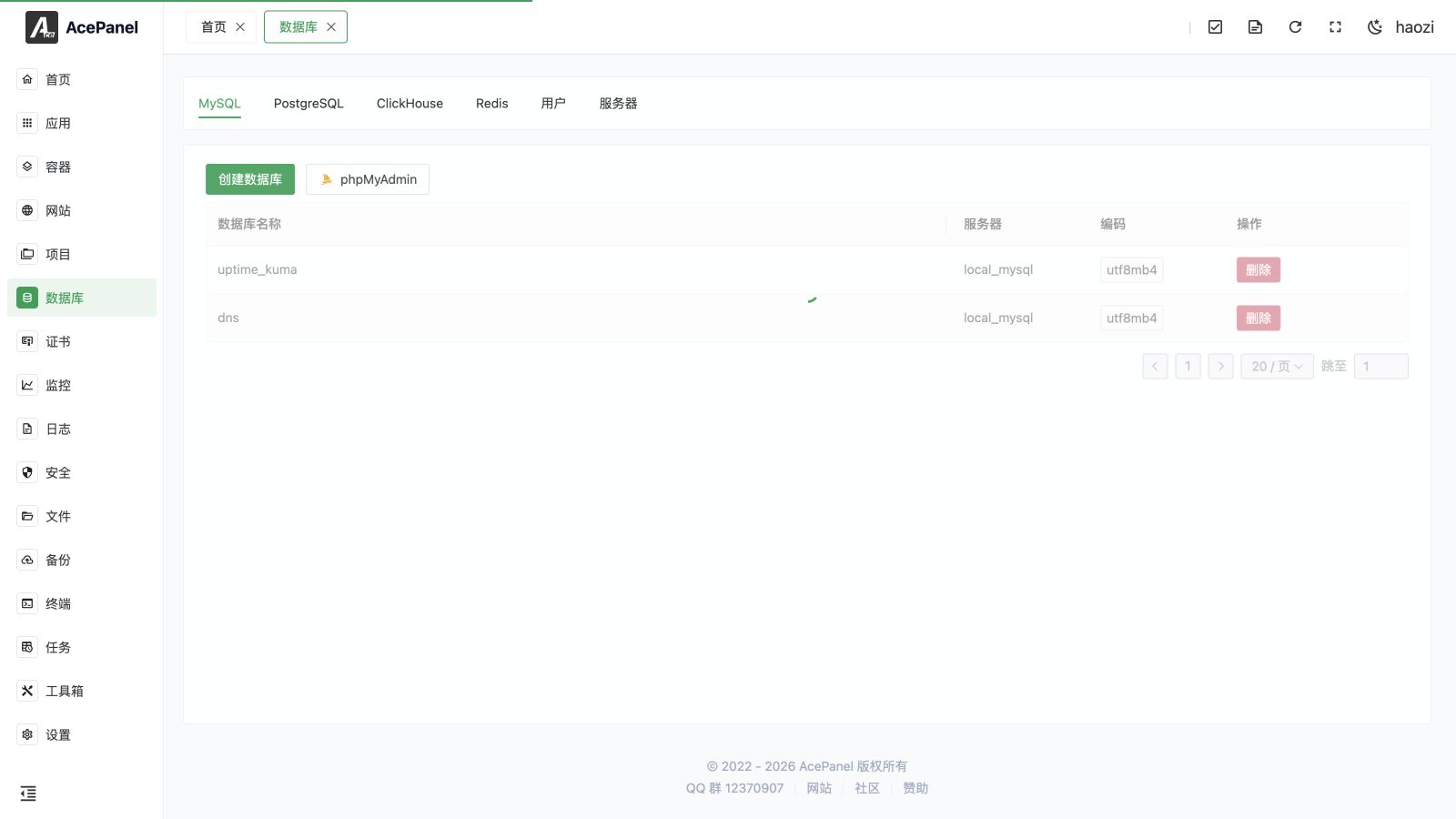
The database module is used to manage relational databases (MySQL, MariaDB, PostgreSQL, etc.), NoSQL and analytical databases (MongoDB, ClickHouse), search engines (Elasticsearch), key-value stores (Redis), and embedded databases (SQLite). It supports creating databases, managing users, browsing data, and configuring database servers.
Prerequisites
Before using the database feature, you need to install the corresponding database software first:
- Go to Apps > Native Applications
- Install the database you need, such as Percona, MySQL, MariaDB, PostgreSQL, MongoDB, ClickHouse, Elasticsearch, OpenSearch, Redis, or Valkey
Feature Overview
The database module adds a type tab only when at least one server of that type exists. The available type tabs are followed by User and Server:
| Feature | Description |
|---|---|
| Database | Create and manage databases for the selected type |
| User | Manage database users and permissions |
| Server | Manage database server connections |
| pgAdmin | Open and maintain the PostgreSQL Web management tool |
The Elasticsearch and Redis tabs provide an online data browser for managing indices/documents and key-value data directly, rather than the create-database workflow.
Supported Databases
| Database | Description |
|---|---|
| MySQL | The world's most popular open-source relational database |
| MariaDB | Open-source fork of MySQL, fully compatible with MySQL |
| Percona | High-performance fork of MySQL, suitable for high-load scenarios |
| PostgreSQL | Powerful open-source object-relational database |
| ClickHouse | Column-oriented database for real-time analytics on huge datasets |
| MongoDB | Document database for storing massive, unstructured data |
| Elasticsearch | Distributed search and analytics engine for full-text search |
| Redis | In-memory key-value store, commonly used for caching |
| SQLite | Lightweight embedded database stored in a single file |
MariaDB and Percona are managed under the MySQL tab, as they are wire-compatible with MySQL.
Quick Start
Create Database
- Go to the Database page and switch to the tab of the database type you want (MySQL, PostgreSQL, ClickHouse, or MongoDB)
- Click Create Database
- Select the server
- Enter the database name
- Optionally toggle Create User, or specify an existing authorized user
- Click Submit
Create User
- Switch to the User tab
- Click Create User
- Select the server, then enter username and password
- Set privileges (database names the user can access; non-existent databases are created automatically)
- Click Submit
Note
User management is only available for MySQL, PostgreSQL, and ClickHouse. Other database types do not expose a user management entry.
Connect to Database
The MySQL database list can open phpMyAdmin and lets you choose the MySQL server to connect to. The PostgreSQL list opens pgAdmin after it is installed. Both tools follow the panel language. Keep their ports private or restricted with an allowlist.
Local Connection
Host: 127.0.0.1 or localhost
Socket: Percona/MySQL/MariaDB /tmp/mysql.sock, PostgreSQL /tmp/.s.PGSQL.5432
Default ports by database type:
| Database | Default Port |
|---|---|
| Percona/MySQL/MariaDB | 3306 |
| PostgreSQL | 5432 |
| ClickHouse | 8123 |
| MongoDB | 27017 |
| Elasticsearch | 9200 |
| Redis | 6379 |
Remote Connection
To connect to the database remotely:
- Open the database port in the firewall
- Create a user that allows remote access
For MySQL (including MariaDB and Percona), the Create User form exposes a Host selector with three options that control where the user may connect from:
| Host option | Meaning |
|---|---|
| Local (localhost) | Only allows connections from the local machine |
| All (%) | Allows connections from any host (required for remote access) |
| Specific | Allows connections only from the host address you enter |
To enable remote access for a MySQL user, choose All (%) (or Specific and enter the client address). PostgreSQL and ClickHouse users do not have this per-host setting, so the Host selector does not appear for those types.
Security Notice
It is not recommended to expose database ports to the public network. For remote management, it is recommended to use SSH tunnels or VPN.
Next Steps
- Database Management - Learn how to create and manage databases
- User Management - Learn how to manage database users
- Server Management - Learn how to manage database servers