
Home
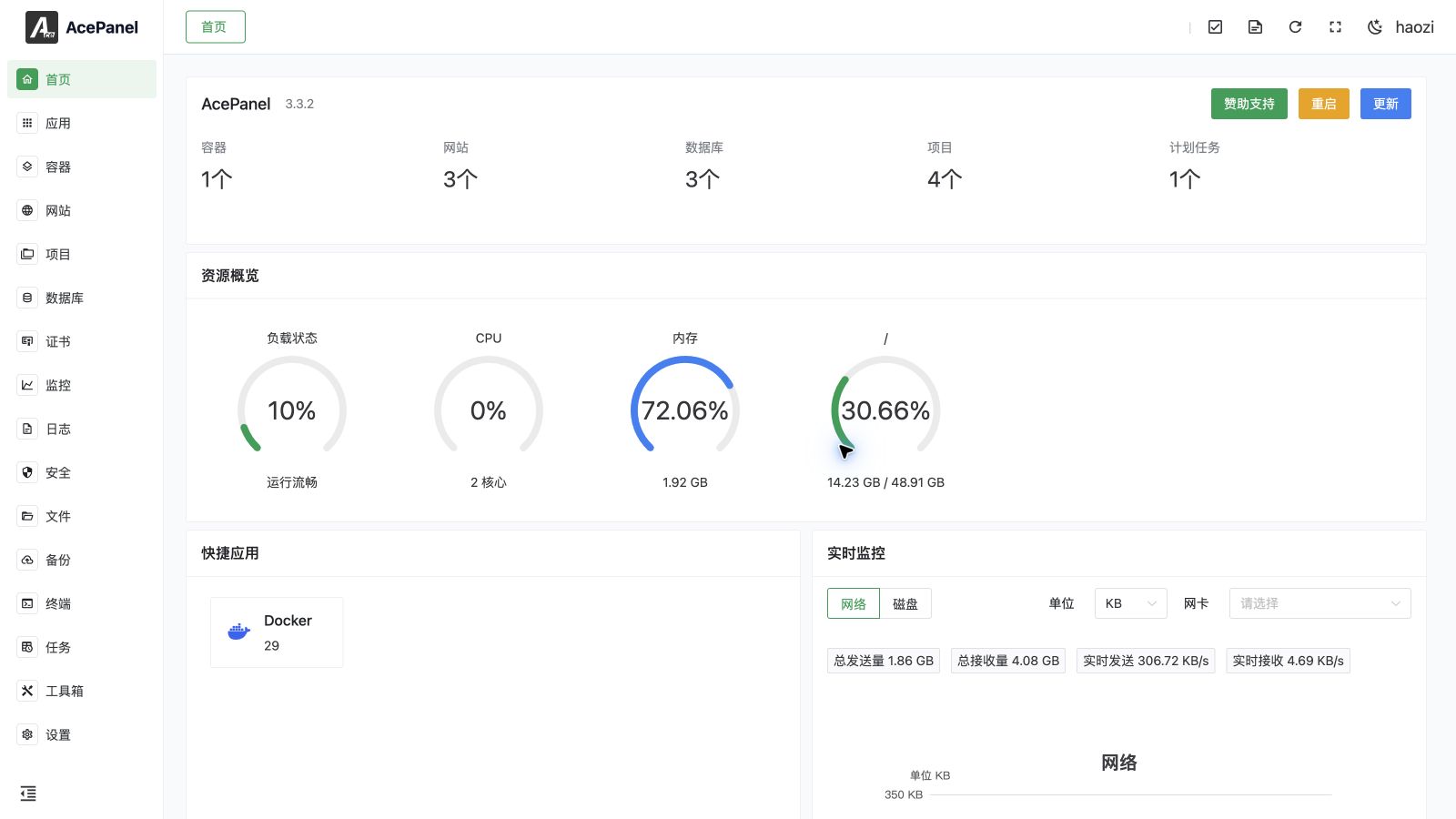
Home is the operational overview of the current server. It combines resource totals, live performance, shortcuts, system information, process ranking, version information, and panel-health warnings on one page.
Open Home from the first item in the main navigation.
What the Dashboard Shows
| Area | What it is used for |
|---|---|
| Resource cards | Counts of managed websites, projects, databases, containers, certificates, scheduled tasks, and applications. Click a card to open the corresponding module. |
| CPU, memory, and load | Current CPU and memory utilization and Linux load averages. A high load value is not the same as high CPU usage; also check process and disk activity. |
| Disk and network charts | Live disk throughput and network ingress/egress. These are short-term operational signals, not historical monitoring. |
| Top processes | Processes currently consuming the most CPU or memory. Use Toolbox > Process for details, open files, connections, and signals. |
| Application shortcuts | Quick access to installed applications and their management pages. |
| System information | Distribution, kernel, uptime, host, and support status. |
| Version | The installed AcePanel version and commit. Use it to confirm that the UI matches the documentation. |
For historical charts and alerting, use System Monitoring, Alerts, and Monitoring Settings & Notifications.
Health Warnings
AcePanel checks its main database, website statistics database, and scan-awareness database. A health banner is displayed if a database cannot be opened or its integrity check fails.
Do not ignore a health banner even when the rest of the panel still appears usable. First create or confirm a recent panel backup, then run the command suggested by the banner:
acepanel fixReview the command output and restart AcePanel only when instructed. A repair may affect the panel service, so keep an SSH session open before starting. Panel database maintenance and the tamper-protection auxiliary database are included in panel backup and recovery operations.
Unsupported or End-of-Life Systems
Home warns when the distribution is unsupported or has reached end of life. An unsupported system can prevent application installation, security updates, firewall changes, or service management from working reliably. Migrate to a supported distribution instead of hiding the warning.
Updating AcePanel
When an update is available, open the update dialog to compare the current and target versions and read the changelog. The dialog streams each update stage and its log output. A failed or timed-out stage remains visible for troubleshooting.
Before updating:
- Download a recent panel backup.
- Confirm that websites, databases, and projects have their own backups.
- Keep an independent SSH session open.
- Do not update while a migration is running.
The panel service restarts during an update, so the browser connection temporarily drops. Some releases may also require a server restart. After a successful update, the dialog closes or reloads the page automatically. If the page does not return, check the panel service and run acepanel info from SSH.
Troubleshooting
- A chart is empty: wait for the first sampling interval, then confirm that the server is not under extreme load.
- A resource count looks stale: open the related module and refresh it; if the mismatch remains, check the health banner and operation logs.
- The update log stops: keep the page open long enough to distinguish a slow package operation from a timeout, then check Panel Tasks and the panel service log.
- An update does not complete: keep the SSH session open, check the update log and panel service, then use
acepanel fixwhen the health message instructs you to do so.